
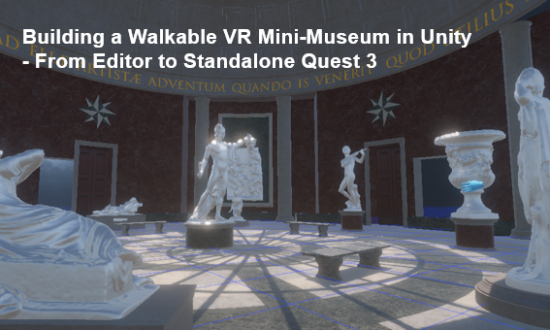
I built a small VR museum in Unity that you can walk around in, and got it running standalone on a Meta Quest 3 with no PC attached.
I love learning about history and art, and VR lets you stand next to a statue instead of looking at a photo of it. I wanted to find out what it takes to get from an empty Unity scene to that experience, and where the real problems are along the way.
This post covers the setup, why performance matters so much in VR, the problems I hit (there were several), and what I want to measure next.
| Item | What I used |
|---|---|
| Engine | Unity 6 (6000.0.77f1), URP |
| XR | OpenXR + XR Interaction Toolkit 3.0.11 |
| Headset | Meta Quest 3 |
| Dev PC | NVIDIA GeForce RTX 2060 (6 GB) |
| Environment | Museum VR Asset Pack Vol. IV (Unity Asset Store) |
The player rig is a standard XR Origin:
I tested in two ways: in the Unity Editor through Quest Link (PC VR), and as an Android build installed on the headset (standalone).
In VR, a dropped frame is not just a visual glitch. It can make people feel sick.
The headset refreshes at a fixed rate, and every frame has to be ready in time:
| Refresh rate | Time per frame |
|---|---|
| 72 Hz | 13.9 ms |
| 90 Hz | 11.1 ms |
Three things make this budget tight:
One setting that helps is Single Pass Instanced rendering (called Multiview on Android). Instead of drawing the scene once for each eye, Unity draws both eyes in a single pass using instancing. This roughly halves the draw call submissions compared to Multi-pass. My standalone build uses Single Pass Instanced / Multiview.
Switching to Single Pass Instanced cut batches and SetPass calls roughly in half, but the frame rate stayed the same.
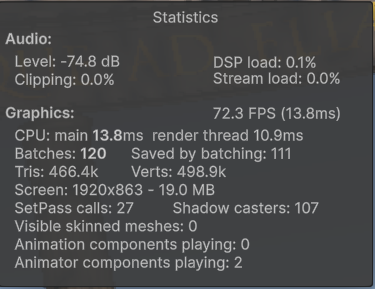
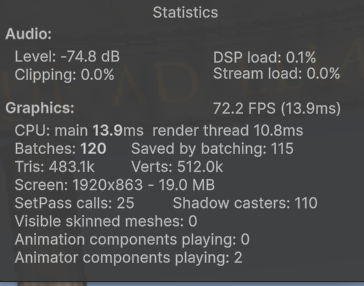
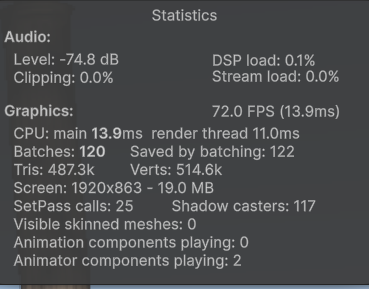
How I measured: Unity Editor in Play mode through Quest Link (USB cable), Quest 3 at 72 Hz. I stood in the same spot, looking at the same statue, and switched only the Render Mode (XR Plug-in Management → OpenXR → Windows tab). For each mode I took three readings from the Stats panel and one frame from the Profiler.
| Metric | Multi-pass | Single Pass Instanced | Change |
|---|---|---|---|
| Batches | 120 | 61 | −49% |
| SetPass calls | 26 | 13 | −50% |
| Shadow casters | 111 | 64 | −42% |
| RenderPipelineManager, main thread (ms) | 1.50 | 1.01 | −33% |
| Render thread (ms) | 10.9 | 10.3 | about the same |
| Frame rate (FPS) | 72.2 | 70.4 | about the same |
Stats values are the average of three readings. RenderPipelineManager is from a single Profiler frame.
Multi-pass
Single Pass Instanced
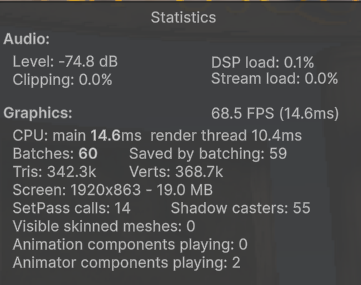
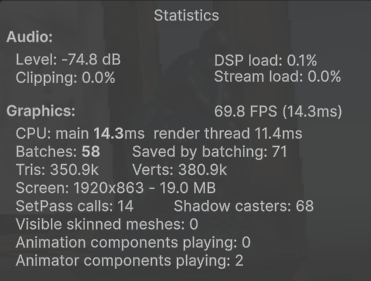
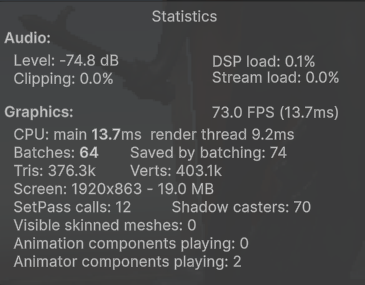
What the numbers say:
Gfx.WaitForRenderThread). On my PC, the CPU is not the bottleneck; the headset sets the pace.Limits of this test: this ran in the Editor on a desktop RTX 2060, and the Profiler could not show GPU time. The Single Pass Instanced FPS readings varied more (68.5 to 73.0), which I treat as noise with only three samples. On a standalone Quest 3, where the CPU and GPU are mobile chips, halving the draw calls should matter much more. That is the next thing to measure.
No. The statue scans are already light, so polygons are not where the cost is.
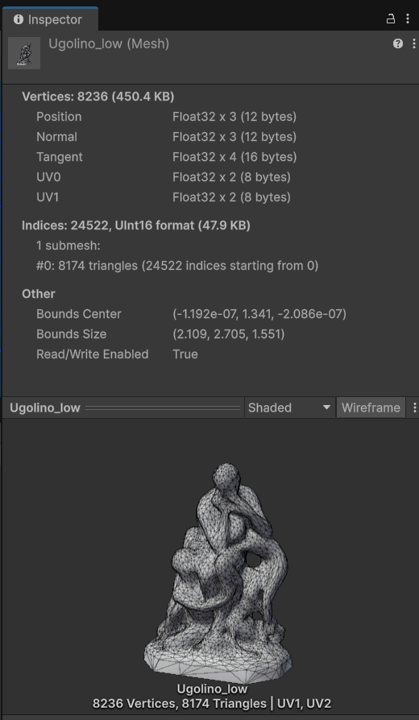
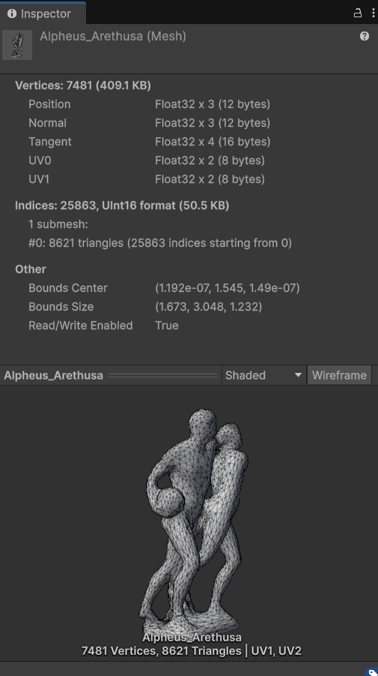
I opened three of the statues in the mesh Inspector:
| Statue | Vertices | Triangles |
|---|---|---|
| Perseus with the Head of Medusa | 14,147 | 14,211 |
| Ugolino | 8,236 | 8,174 |
| Alpheus and Arethusa | 7,481 | 8,621 |
Even the heaviest, Perseus, is about 14k triangles. The asset’s documentation says its 13 models average about 6,000 triangles each, so all of them together come to roughly 80k.
Looking at the wireframes was the most interesting part for me. The meshes are fairly coarse; you can see the triangles on the faces and the folds of cloth. Yet in the headset they look finely carved. That detail comes from the textures, mainly the 2048×2048 normal maps, not from the geometry. For scanned historical artifacts, this is the key trade-off: keep the mesh light for the headset, and let the textures carry the craftsmanship.
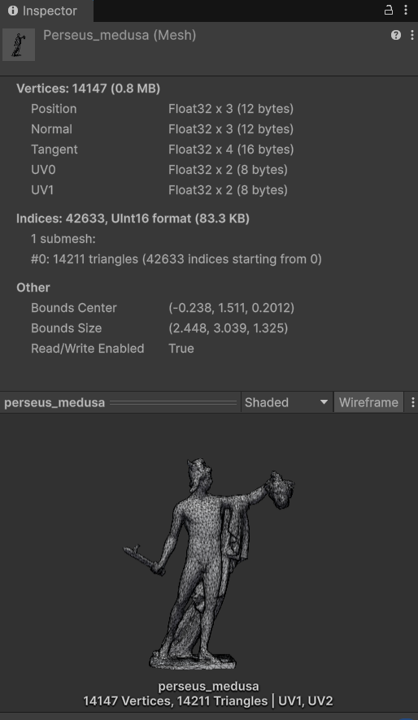
The ~480k triangles in Stats therefore come mostly from rendering two eyes, the shadow pass, and the room itself. That changed my priorities for the next round: instead of starting with LODs, I plan to look at lighting, shadows and post-processing first, and I’ll share the results in an upcoming post.
Two small things I found while inspecting the statue:
Most of my time went into these. Each one taught me something about how the VR pipeline fits together.
| Symptom | Cause | Fix |
|---|---|---|
| Meta Horizon Link warned that my GPU driver can freeze during play | Known issue in newer NVIDIA drivers | Clean install of driver 591.86, with auto-updates off |
| The scene looked like a flat window, lagging 5 to 10 seconds behind my head | Link was running over Wi-Fi (Air Link), not the cable | Disabled the network connection and used the USB cable |
| Hands stuck at floor level, not tracking | The controllers showed up with a generic input layout. The pose lived at devicepose/position, but the XRI actions looked for devicePosition | Found it with the Input Debugger, then added matching bindings to the actions |
| Android build failed in CMake, then in Gradle | My project folder name contained [, which build tools read as a special character | Renamed the folder and deleted the old build cache |
| The app opened as a flat 2D panel on the headset | XR was not enabled for the Android build | Enabled OpenXR and Meta Quest Support on the Android tab |
The biggest lesson: when something looks wrong in VR, first find out where it breaks. Unity’s Stats panel showed over 350 FPS in the Editor while the headset still stuttered. That pointed away from my scene and toward the connection between the PC and the headset.
The museum now runs as a standalone app on the Quest 3. I can unplug the cable, walk between the statues, and turn with the thumbsticks.
It was beautiful. Standing next to the statues, I felt I could almost reach out and touch them, the way I would in a real museum. I added stronger lights than the asset’s sample scene, which brought out the detail in the marble. It felt like having a luxurious museum all to myself.
Those extra lights have a cost, though. Real-time lights and shadows are among the most expensive things for a mobile GPU. I haven’t measured the standalone frame rate yet, so that is the first thing to check.
Seeing the same scene on PC VR and on the headset alone made the performance question feel real. On PC, the RTX 2060 had plenty of headroom. On the Quest 3, the same scene has to fit inside a much smaller budget.
Getting it running was step one. Next, I want numbers from the headset itself:
Museums, historical sites and cultural heritage are a great fit for VR, but they are also full of detailed scanned models. Keeping that detail while holding a steady 72 or 90 FPS on a standalone headset is the challenge I want to keep working on.